
Over the past few years, I have turned my main PC into a work, gaming, and media machine all in one. That meant a lot of software: launchers, trial tools, utilities I used once, and store apps I never opened again. The symptoms were easy to see. Boot time kept creeping up, the fan spun more often, and my SSD space shrank without any single huge folder to blame.
I knew that a good part of the problem was rarely used software that still sat on the drive and sometimes loaded services in the background. The problem was finding it quickly and removing it cleanly. That is why I started using IObit Uninstaller as my main tool to identify and remove programs I almost never use instead of waiting until the PC feels painfully slow.
The Features That Help Me Find Them
From the official information, IObit Uninstaller 15 Free is designed to completely remove unwanted software, Windows apps, and browser plug-ins and clean their leftover files for a safer and lighter PC. A few features are especially useful when the goal is to track down rarely used programs:
- Clean and Light PC
Removes programs and uses an upgraded engine and better scan algorithms to find remaining folders, registry entries, and temp files so they can be removed at the same time.
- Smart program categorization
It can organise installed items into groups such as bundleware, recently installed, large programs, and those you use not so frequently, which makes it easier to decide what to remove.
- Windows app and plug-in removal
It can uninstall Windows apps and browser extensions, not only classic desktop software, and uses an enlarged database to identify more malicious or unnecessary plug-ins.
- Software Health
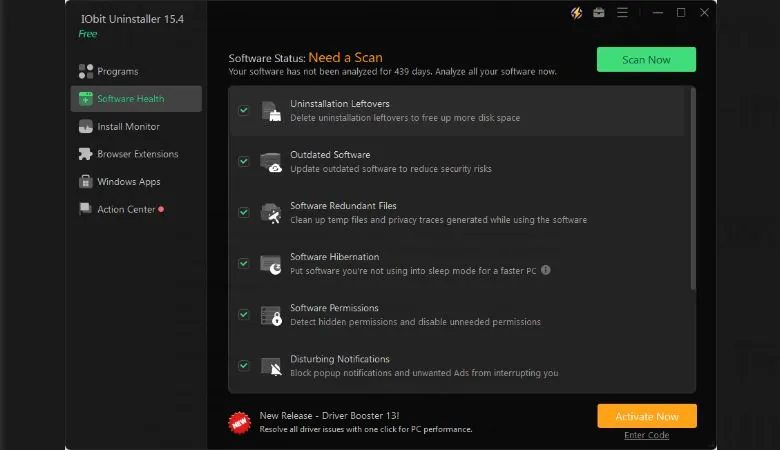
This panel scans for uninstallation leftovers, redundant setup files, hibernated software, and unsafe permissions. Then, it fixes them in one click so the software environment stays clean and healthy.
Taken together, these features give me both a bird’s-eye view of my software and the tools to remove what I no longer need.
How I Use IObit Uninstaller In My Weekly Cleanup
Step 1: First install a full inventory
I downloaded IObit Uninstaller 15 Free, installed it, and opened the main window. It scanned my system and loaded a full list of installed programs, store apps, and browser extensions. The program already showed more items than the default Apps and Features panel in Windows.
Before removing anything, I clicked on Software Health and ran an initial scan. It reported leftovers from older uninstalls, redundant installation packages, and a few hibernated programs I had forgotten about.
Step 2: Sorting by size, date, and frequency.
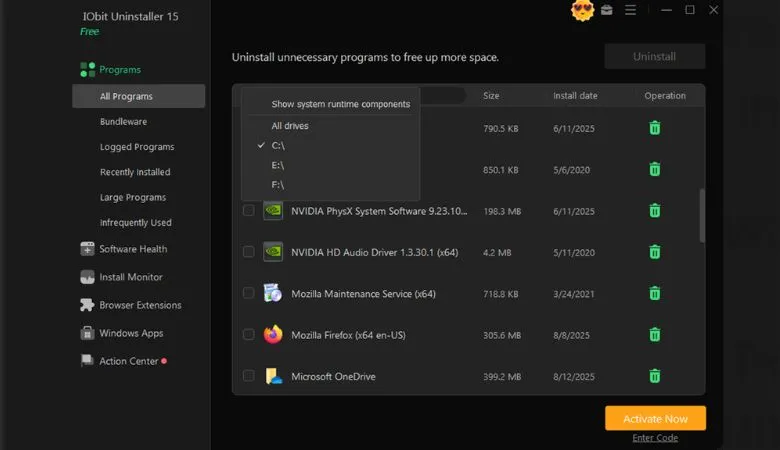
To find rarely used programs, I used the built-in sorting and categorisation options. I asked IObit Uninstaller to show the following:
- Large programs first
- Recently installed items
- Programs used infrequently, based on their usage tracking
This quickly surfaced several GBs of tools and games I had not opened in months. Seeing them grouped by size and low usage made decisions easier. I no longer had to guess which entries were safe to remove.
Step 3: Uninstalling in batches with deep cleanup.
Once I had my target list, I selected several programs at a time and clicked Uninstall with Powerful Scan enabled. IObit Uninstaller ran each program’s own uninstaller, then scanned for associated folders, files, and registry keys and listed them for removal.
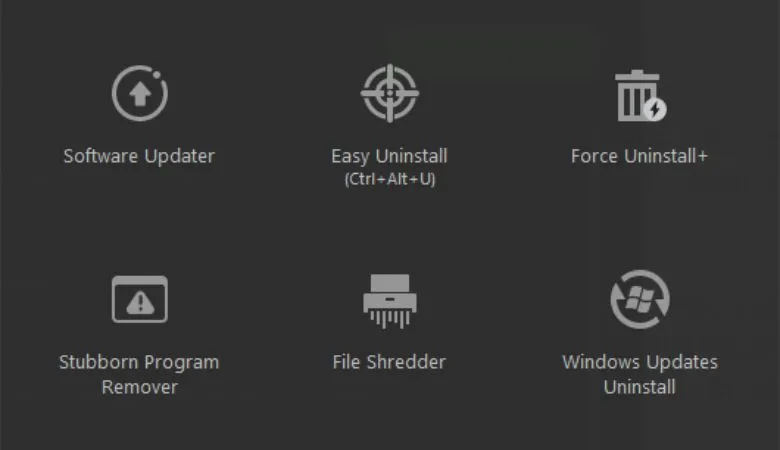
For a couple of stubborn entries that had failed to uninstall correctly in the past, I used the stronger removal options. According to the product details, the stubborn program remover and Force Uninstall features are designed to handle programs that cannot be removed in a routine way and to clean all related files, which matched my experience. After running those, previously stuck entries finally disappeared from the list and from the drive.
Step 4: Using Software Health to finish the job
After each round of removals, I went back to Software Health and ran another scan. It found leftover data from older software, unneeded installer caches, and some unused permissions and browser extensions and offered to fix them automatically.
This final pass is what turns a simple uninstall session into a deeper cleanup. Instead of stopping when the program list looks shorter, I let Software Health check whether any traces are still registered on the system.
Advantages I Noticed
Using this routine with IObit Uninstaller gave me benefits I could both feel and measure:
- It was easy to spot rarely used programs because the tool can show large items and not frequently used apps in their own categories, which saved me from scrolling through the entire list repeatedly.
- Deep cleanup meant that removing a program also cleared many of its leftover files and registry entries, so my system drive slowly recovered several gigabytes that had been tied up in old tools and games.
Disadvantages I Ran Into
There are also some points that anyone using IObit Uninstaller this way should know:
- Full leftover scans and Software Health checks take a bit of time on a machine with a long history, so I run them when I can leave the PC working for a few minutes.
- The interface offers many powerful sections such as Install Monitor, Windows Apps, Browser Plug-ins, and Software Health. Learning how each one works took a little patience, especially at the beginning.
- With options like restore point creation and thorough cleanup enabled, the program asks for extra confirmation before deleting things. This is safer but slightly slows down large batch operations.
What I Think After Using It
After getting used to this routine, I no longer wait until my PC feels painfully slow before cleaning it. Instead, I open IObit Uninstaller once a week, sort by size and low usage, uninstall what I no longer need, and finish with a Software Health scan.
This approach has kept disk usage under better control and reduced the number of background processes that fight for CPU time when I am working or playing. It does not turn an old machine into a brand new one, but it does help me continuously remove rarely used software that would otherwise stay installed forever.
For anyone looking for a reliable uninstaller for Windows to handle work, games, and recording without constant reinstalling, that is exactly the kind of quiet improvement I was looking for.